> For the complete documentation index, see [llms.txt](https://docs.veedna.com/llms.txt). Markdown versions of documentation pages are available by appending `.md` to page URLs; this page is available as [Markdown](https://docs.veedna.com/unifai/ai-asset-inventory-ai-bom/viewing-allowing-and-blocking-your-ai-asset-inventory-ai-bom.md).
# Viewing, Allowing, and Blocking Your AI Asset Inventory (AI BOM)
## Viewing AI Asset Inventory (AI BOM)
You can view all of your AI BOMs or filter them by asset type. For a list of supported prompts, see [Lineaje AI Assistant](/unifai/lineaje-ai-ai-assistant.md).
Ask Lineaje AI to show all of the discovered AI BOMs. Here's an example prompt:
```
Show all discovered AI BOMs
```
Lineaje AI shares a breakdown of AI BOMs found in AI Model, MCP Server, and AI Agent.
For example:
```
Found 719 AIBOM
Breakdown:
• Component: 458
• Aimodel: 122
• Mcpserver: 98
• Aiagent: 41
Suggestions: Enable suggested policies, View all policies
```
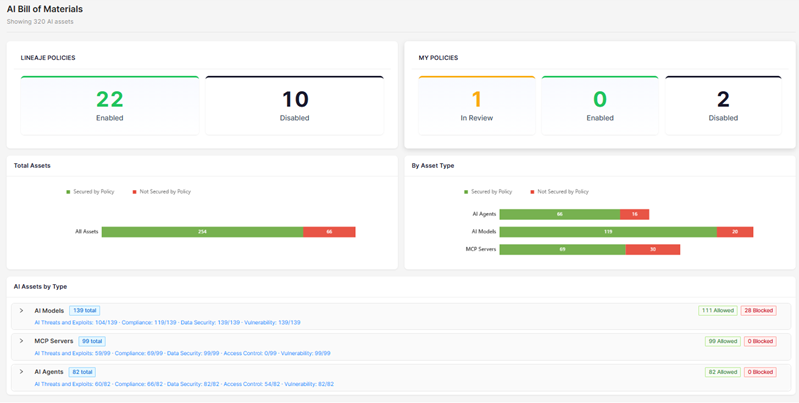
On the right of the screen:
* **Total Assets**: Shows the total number of your assets and provides a detailed breakdown of those secured by a policy and those that are not secured.
* **By Asset Type**: Displays AI Asset Inventory (AI BOM) by type: AI Agents, AI Models and MCP Servers. For each type, see the number of assets that are secured by a policy and those that are not secured.
* **AI Assets By Type**: Displays the details of each AI asset, including the Allowed and Blocked assets.
* **AI Models**: Lists the models, version, project the model belongs to, organization it belongs to, and the status. Click on each AI model to see the trust score for each AI model. The trust score is computed across 6 weighted dimensions: Data Governance (25%), Security Controls (25%), Compliance (15%), Auditability (10%), Safety (15%), and Transparency (10%). Each dimension scores 0-100 based on disclosed controls, policies, and certifications. Transparency reflects the ratio of publicly documented items vs. enterprise-only or undisclosed items.
* **MCP Servers**: Lists the MCP server, project the server belongs to, organization it belongs to, and the status.
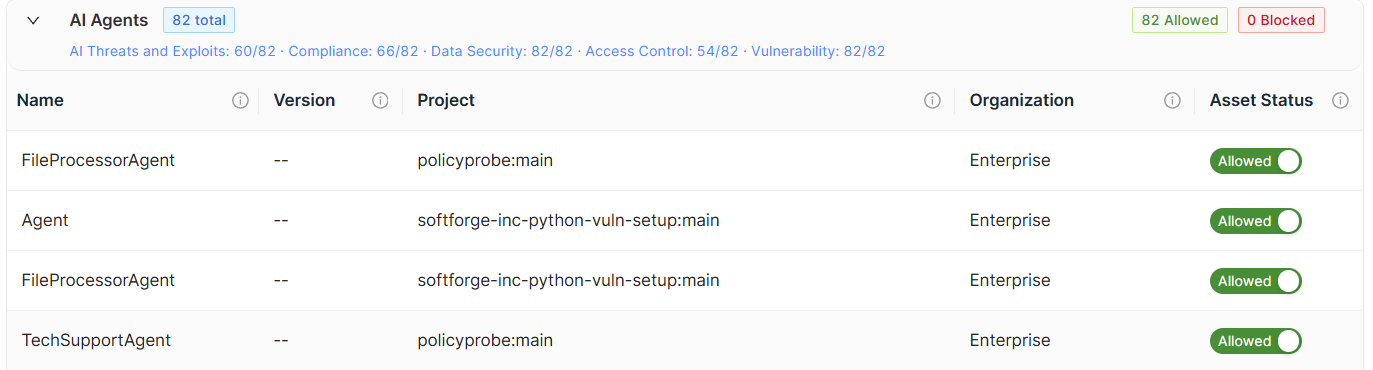
* **AI Agents**: Lists the AI Agent, project the AI Agent belongs to, organization it belongs to, and the status.
* **Skills**: Lists every tool your agents use, for example, web search, SQL queries, code execution, file parsing, and more. UnifAI now discovers and scans them automatically.
Every skill receives a Risk Score from Lineaje's reputation engine, analyzing prompts, data-exfiltration signals, known IoCs, and partial dynamic analysis. Scores range from 0–100 and map to four classifications:
* **Unknown**: Detected at runtime; awaiting scan.
* **Benign (0)**: No malicious indicators detected.
* **Suspicious (1-5)**: Review findings before continued use.
* **Malicious (5-10)**: Block from agent use until remediated.
Expand each section to see the following details:
* **Name**: The name of the model.
* **Version**: The version number of the model.
* **Project**: The component of a product. For example, source repository or micro service.
* **Organization**: The organization the project belongs to.
* **Asset Status**: Model secured by policy (`Allowed`) or not secured (`Disallowed`).
## Allowing or Blocking AI Asset Inventory (AI BOM)
In the **Asset Status** column, you can use the toggle to set the asset status to `Allowed` or `Blocked`. Asset Status indicates whether the asset is secured by a policy. An asset with a status of **Allowed** is governed by an active policy. An asset with a status of **Disallowed** is not secured by policy.
---
# Agent Instructions
This documentation is published with GitBook. GitBook is the documentation platform designed so that both humans and AI agents can read, navigate, and reason over technical content effectively. Learn more at gitbook.com.
## Querying This Documentation
If you need additional information that is not directly available in this page, you can query the documentation by asking a question.
Perform an HTTP GET request on the following URL with the `ask` and `goal` query parameters:
```
GET https://docs.veedna.com/unifai/ai-asset-inventory-ai-bom/viewing-allowing-and-blocking-your-ai-asset-inventory-ai-bom.md?ask=&goal=
```
`ask` is the immediate question: it should be specific, self-contained, and written in natural language.
`goal` is what the user is ultimately trying to achieve, the reason they need the answer. Sharing it helps GitBook give you a better, more relevant answer. A goal is most helpful when it describes the outcome the user wants rather than restating the question. For example, with `ask=how do I create an API token`, a goal like `automate deployments from our CI pipeline` lets GitBook tailor the answer to that use case.
The response will contain a direct answer to the question and relevant excerpts and sources from the documentation.
Use this mechanism when the answer is not explicitly present in the current page, you need clarification or additional context, or you want to retrieve related documentation sections.